Develop code that durably executes
- Introduction
- Project setup
- Durable execution
When it comes to the Temporal Platform's ability to durably execute code, the SDK's ability to Replay a Workflow Execution is a major aspect of that. This chapter introduces the development patterns which enable that.
This chapter introduces best practices for developing deterministic Workflows that can be Replayed, enabling Durable Execution. By the end of this section you will know basic best practices for Workflow Definition development.
Learning objectives:
- Identify SDK API calls that map to Events
- Recognize non-deterministic Workflow code
- Explain how Workflow code execution progresses
The information in this chapter is also available in the Temporal 102 course.
This chapter walks through the following sequence:
- Retrieve a Workflow Execution's Event History
- Add a Replay test to your application
- Intrinsic non-deterministic logic
- Non-deterministic code changes
Retrieve a Workflow Execution's Event History
There are a few ways to view and download a Workflow Execution's Event History. Start by using either the Temporal CLI or the Web UI.
Using the Temporal CLI
Use temporal workflow show to save the Event History to a local file. Run the command from the /backgroundcheckreplay directory so the file is available to the testing files.
/backgroundcheck
    ...
    /main
    /test
    backgroundcheck_workflow_history.json
Local dev server:
temporal workflow show \
 --workflow-id backgroundcheck_workflow \
 --output json > backgroundcheck_workflow_event_history.json
The most recent Event History for that Workflow Id is returned when you only use the Workflow Id to identify the Workflow Execution. Use the --run-id option to get the Event History of an earlier Workflow Execution by the same Workflow Id.
Temporal Cloud: provide the paths to your certificate and private keys, or set those paths as environment variables:
temporal workflow show \
 --workflow-id backgroundcheck_workflow \
 --namespace backgroundcheck_namespace \
 --tls-cert-path /path/to/ca.pem \
 --tls-key-path /path/to/ca.key \
 --output json  > backgroundcheck_workflow_history.json
Self-hosted:
temporal_docker workflow show \
 --workflow-id backgroundcheck_workflow \
 --namespace backgroundcheck_namespace \
 --output json  > backgroundcheck_workflow_history.json
Via the UI
A Workflow Execution's Event History is also available in the Web UI. Navigate to the Workflows page and select the Workflow Execution.
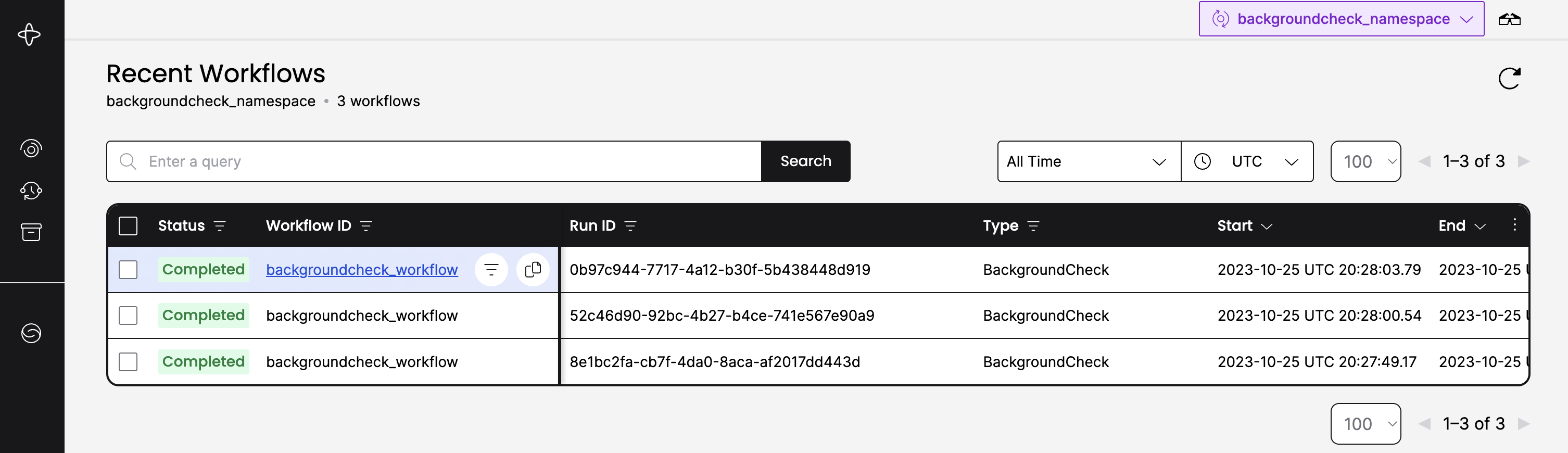
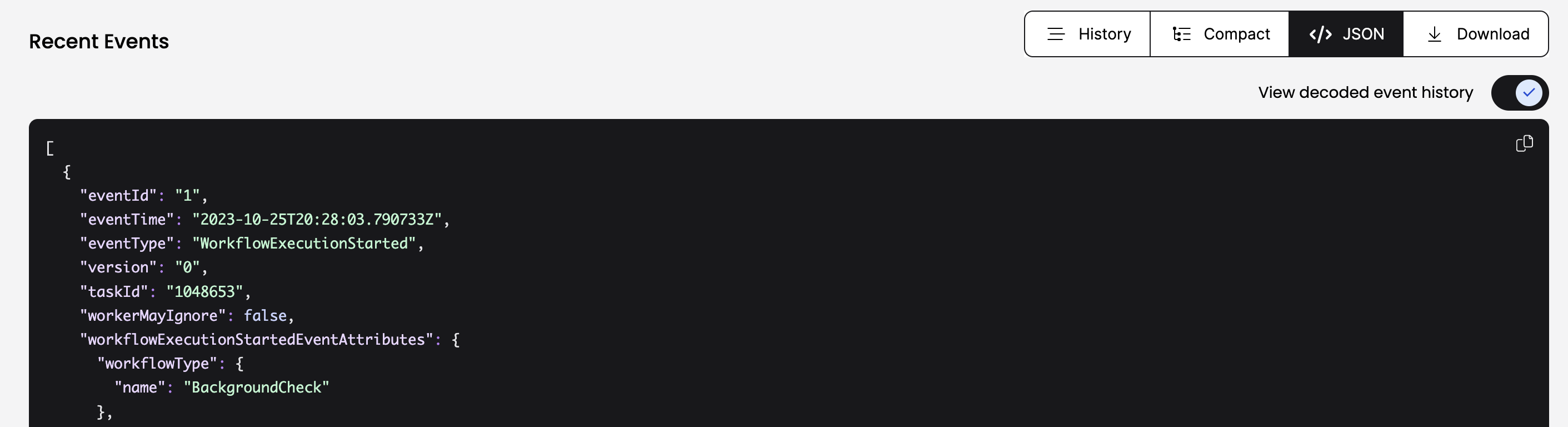
From the Workflow details page you can copy the Event History from the JSON tab and paste it into the backgroundcheck_workflow_history.json file.
Add a Replay test
Add the Replay test to the set of application tests.
// ...
  @Test
  public void testSuccessfulReplayFromFile(BackgroundCheckReplayWorkflow workflow) throws Exception {

    File eventHistoryFile = new File("backgroundcheck_workflow_event_history.json");

    assertDoesNotThrow(() -> WorkflowReplayer.replayWorkflowExecution(eventHistoryFile,
        BackgroundCheckReplayWorkflowImpl.class));

  }
}
Why add a Replay test?
The Replay test is important because it verifies whether the current Workflow code remains compatible with the Event Histories of earlier Workflow Executions.
A failed Replay test typically indicates non-deterministic behavior - for a specific input, the Workflow code can follow different code paths during each execution, resulting in distinct sequences of Events. The Replay test executes the same steps as the SDK and verifies compatibility.
Workflow code becomes non-deterministic primarily through two main avenues:
- Intrinsic non-deterministic logic - when Workflow state or branching logic gets determined by factors beyond the SDK's control.
- Non-deterministic code changes - when you change Workflow code and deploy those changes while there are still active Workflow Executions relying on older code versions.
Intrinsic non-deterministic logic
"Intrinsic non-determinism" can prevent the Workflow code from completing because the Workflow can take a different code path than the one expected from the Event History.
The following are some common operations that can't be done inside of a Workflow Definition:
- Generate and rely on random numbers (use Activities instead).
- Access or mutate external systems or state. This includes calling an external API, conducting a file I/O operation, talking to another service, invoking an LLM or other AI service (use Activities instead). LLMs and AI services are non-deterministic even when the network call succeeds, since the same prompt may return a different response on each call.
- Rely on system time:
- Use
Workflow.currentTimeMillis()as a replacement forSystem.CurrentTimeMillis(). - Use
Workflow.Sleep()as a replacement forThread.Sleep().
- Use
- Work directly with threads.
- Iterate over data structures with unknown ordering. This includes iterating over HashMaps using
foras the order is randomized. Collect the keys of the map, sort them, and then iterate over the sorted keys, or use aLinkedHashMapor other ordered data structure. - Store or evaluate the run Id.
One way to produce a non-deterministic error is to use a random number to determine whether to sleep inside the Workflow:
package backgroundcheckreplay;

import io.temporal.activity.ActivityOptions;
import io.temporal.workflow.Workflow;
import org.slf4j.Logger;

import java.time.Duration;
import java.util.Random;

public class BackgroundCheckReplayNonDeterministicWorkflowImpl implements BackgroundCheckReplayNonDeterministicWorkflow {

  // Define the Activity Execution options
  // StartToCloseTimeout or ScheduleToCloseTimeout must be set
  ActivityOptions options = ActivityOptions.newBuilder()
          .setStartToCloseTimeout(Duration.ofSeconds(5))
          .build();

  // Create an client stub to activities that implement the given interface
  private final BackgroundCheckReplayActivities activities =
      Workflow.newActivityStub(BackgroundCheckReplayActivities.class, options);

  @Override
  public String backgroundCheck(String socialSecurityNumber) {

    // CAUTION, the following code is an anti-pattern showing what NOT to do
    Random random = new Random();
    if(random.nextInt(101)>= 50){
      Workflow.sleep(Duration.ofSeconds(60));
    }

    // Execute the Activity synchronously (wait for the result before proceeding)
    String ssnTraceResult = activities.ssnTraceActivity(socialSecurityNumber);

    // Make the results of the Workflow available
    return ssnTraceResult;
  }

}
Does this mean Temporal can't be used for AI?
No - the opposite. Workflow determinism is exactly what makes Temporal a strong fit for AI applications. LLM calls, tool use, and agent steps are non-deterministic by nature, so you place them in Activities. This separation makes the orchestration dependable even though these individual steps are non-deterministic, so your agent can recover from crashes, retry failed LLM calls, and resume long-running tasks without losing state.
Non-deterministic code changes
The most important thing to take away from this section is to make sure you have an application versioning plan whenever you are developing and maintaining a Temporal Application that will eventually deploy to a production environment.
The Event History
Inspect the Event History of a recent Background Check Workflow using temporal workflow show:
temporal workflow show \
 --workflow-id backgroundcheck_workflow \
 --namespace backgroundcheck_namespace
You should see output similar to this:
Progress:
  ID          Time                     Type
   1  2023-11-08T21:58:50Z  WorkflowExecutionStarted
   2  2023-11-08T21:58:50Z  WorkflowTaskScheduled
   3  2023-11-08T21:58:50Z  WorkflowTaskStarted
   4  2023-11-08T21:58:50Z  WorkflowTaskCompleted
   5  2023-11-08T21:58:50Z  TimerStarted
   6  2023-11-08T21:59:50Z  TimerFired
   7  2023-11-08T21:59:50Z  WorkflowTaskScheduled
   8  2023-11-08T21:59:50Z  WorkflowTaskStarted
   9  2023-11-08T21:59:50Z  WorkflowTaskCompleted
  10  2023-11-08T21:59:50Z  ActivityTaskScheduled
  11  2023-11-08T21:59:50Z  ActivityTaskStarted
  12  2023-11-08T21:59:50Z  ActivityTaskCompleted
  13  2023-11-08T21:59:50Z  WorkflowTaskScheduled
  14  2023-11-08T21:59:50Z  WorkflowTaskStarted
  15  2023-11-08T21:59:50Z  WorkflowTaskCompleted
  16  2023-11-08T21:59:50Z  WorkflowExecutionCompleted

Result:
  Status: COMPLETED
  Output: ["pass"]
All Events are created by the Temporal Server in response to either a request coming from a Temporal Client, or a Command coming from the Worker. A closer look:
WorkflowExecutionStarted: created in response to the request to start the Workflow Execution.WorkflowTaskScheduled: indicates a Workflow Task is in the Task Queue.WorkflowTaskStarted: indicates that a Worker successfully polled the Task and started evaluating Workflow code.WorkflowTaskCompleted: the Worker stopped execution and made as much progress as it could.TimerStarted: schedules a durable timer and records it in the Event History.TimerFired: after the time specified in the Timer has passed, the Timer fires, resuming execution.ActivityTaskScheduled: indicates that a request to execute an Activity was made.ActivityTaskStarted: the Worker successfully polled the Activity Task and started evaluating Activity code.ActivityTaskCompleted: the Worker completed evaluation of the Activity code and returned results to the Server.
The Event reference serves as a source of truth for all possible Events in the Workflow Execution's Event History and the data stored in them.
Add a call to sleep
In the following sample, we add a couple of logging statements and a Timer to the Workflow code to see how this affects the Event History. Use Workflow.sleep to request the Workflow to sleep for a minute before the Activity call. Use Workflow.getLogger to log from Workflows to suppress repeated logs from the Replay of the Workflow code.
package backgroundcheckreplay;

import io.temporal.activity.ActivityOptions;
import io.temporal.workflow.Workflow;
import org.slf4j.Logger;

import java.time.Duration;

public class BackgroundCheckReplayWorkflowImpl implements BackgroundCheckReplayWorkflow {

  public static final Logger logger = Workflow.getLogger(BackgroundCheckReplayWorkflowImpl.class);

  // Define the Activity Execution options
  // StartToCloseTimeout or ScheduleToCloseTimeout must be set
  ActivityOptions options = ActivityOptions.newBuilder()
          .setStartToCloseTimeout(Duration.ofSeconds(5))
          .build();

  // Create an client stub to activities that implement the given interface
  private final BackgroundCheckReplayActivities activities =
      Workflow.newActivityStub(BackgroundCheckReplayActivities.class, options);

  @Override
  public String backgroundCheck(String socialSecurityNumber) {

    // Sleep for 1 minute
    logger.info("Sleeping for 1 minute...");
    Workflow.sleep(Duration.ofSeconds(60));
    logger.info("Finished sleeping");

    // Execute the Activity synchronously (wait for the result before proceeding)
    String ssnTraceResult = activities.ssnTraceActivity(socialSecurityNumber);

    // Make the results of the Workflow available
    return ssnTraceResult;
  }

}
Inspect the new Event History
After updating your Workflow code, run your tests again. You should expect TestReplayWorkflowHistoryFromFile to fail because the new code creates new Events and alters the Event History sequence.
This guide jumps between several sample applications using multiple Task Queues. Make sure you are starting Workflows on the same Task Queue that the Worker is listening to. Always make sure that all Workers listening to the same Task Queue are registered with the same Workflows and Activities.
In the new Event History you'll see two new Events in response to Workflow.sleep(), which sends the StartTimer Command to the Server:
TimerStartedTimerFired
You don't see any Events related to logging. And if you were to remove the Sleep call from the code, there wouldn't be a compatibility issue with the previous code. Only certain code changes within Workflow code are non-deterministic. If the API call causes a Command to create Events that takes a new path from the existing Event History, then it is a non-deterministic change.
Non-deterministic changes include but are not limited to the following:
- Adding or removing an Activity
- Adding or removing a Timer
- Altering the execution order of Activities or Timers relative to one another
The following are a few examples of changes that do not lead to non-deterministic errors:
- Modifying non-Command generating statements in a Workflow Definition, such as logging statements
- Changing attributes in the
ActivityOptions - Modifying code inside of an Activity Definition
Workflow Reset
One way of fixing a Workflow that is blocked by a non-deterministic error is to reset the Workflow to an earlier state and allow it to progress. This only works if you have removed the source of the non-deterministic error. Resetting a Workflow to a certain state discards any progress the Workflow may have made after that point, so be certain this is the action you want to take.
Resetting via the Web UI
If you decide you don't need the Timer in this current Workflow and delete it, once you have deployed your change, go to the currently blocked Workflow in the Web UI and select Reset from the dropdown in the top right.
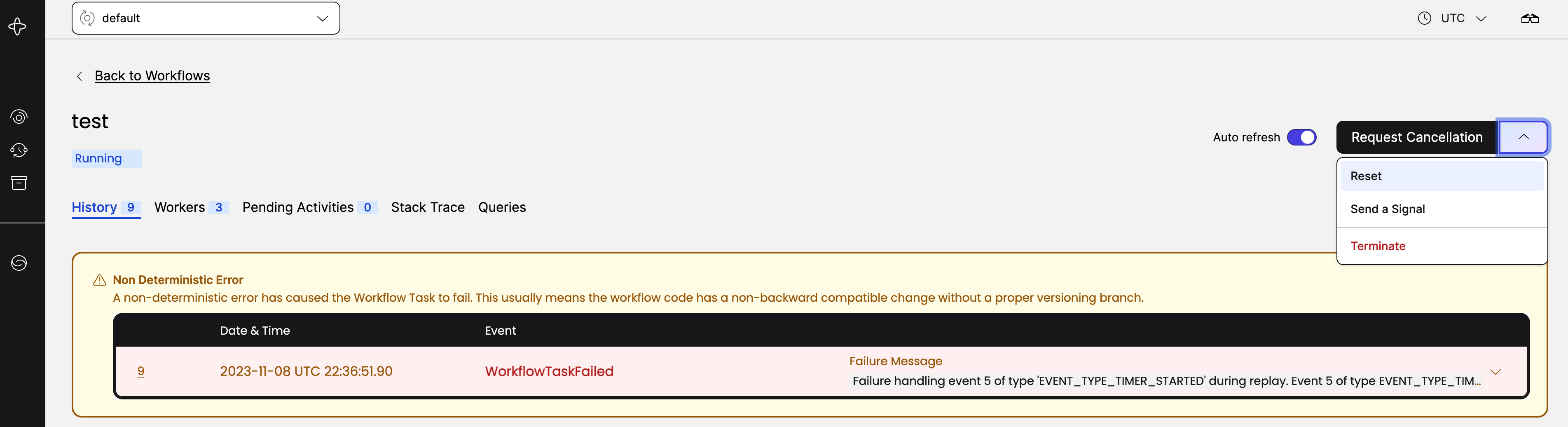
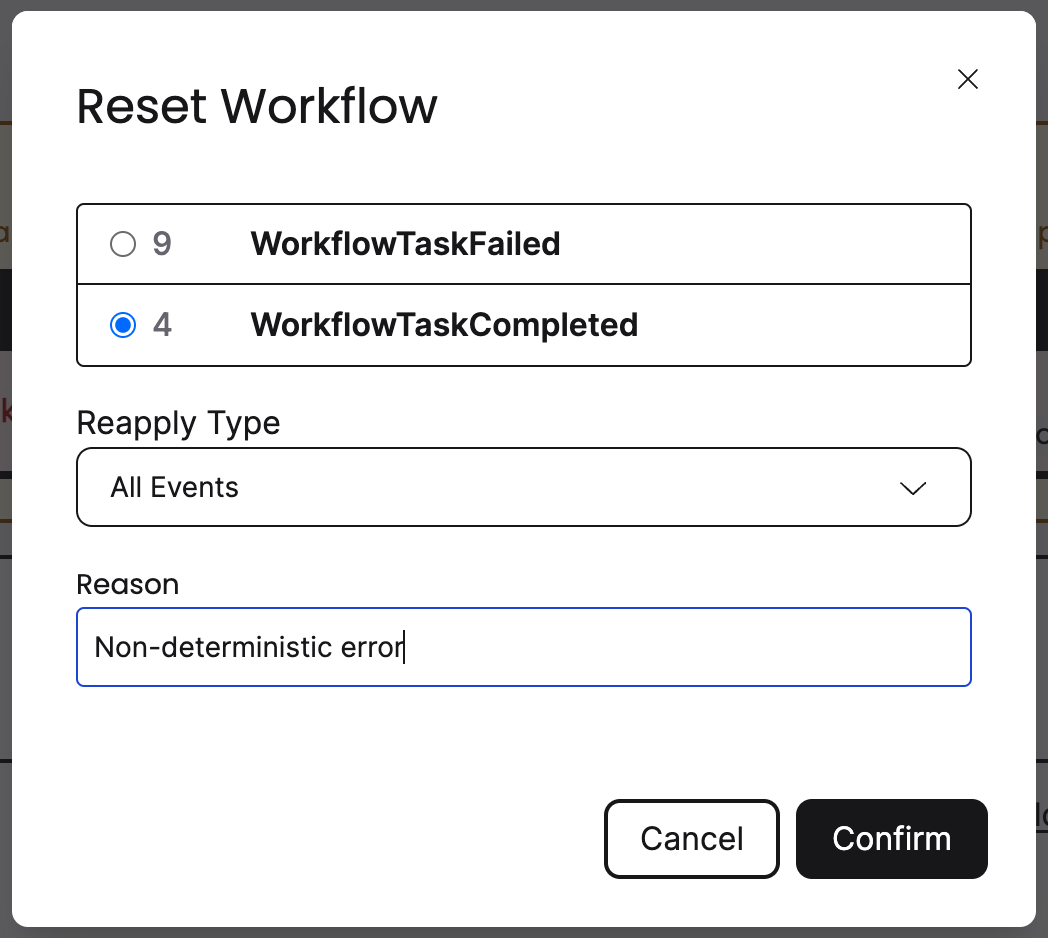
Next, you'll see a list of available points where the Workflow can be reset to. The only valid option would be to reset the Workflow to the first WorkflowTaskCompleted with event ID 4, since it is before the WorkflowTaskFailed event. Always include a reason - the reason will be persisted in the Event History and may be useful to others.
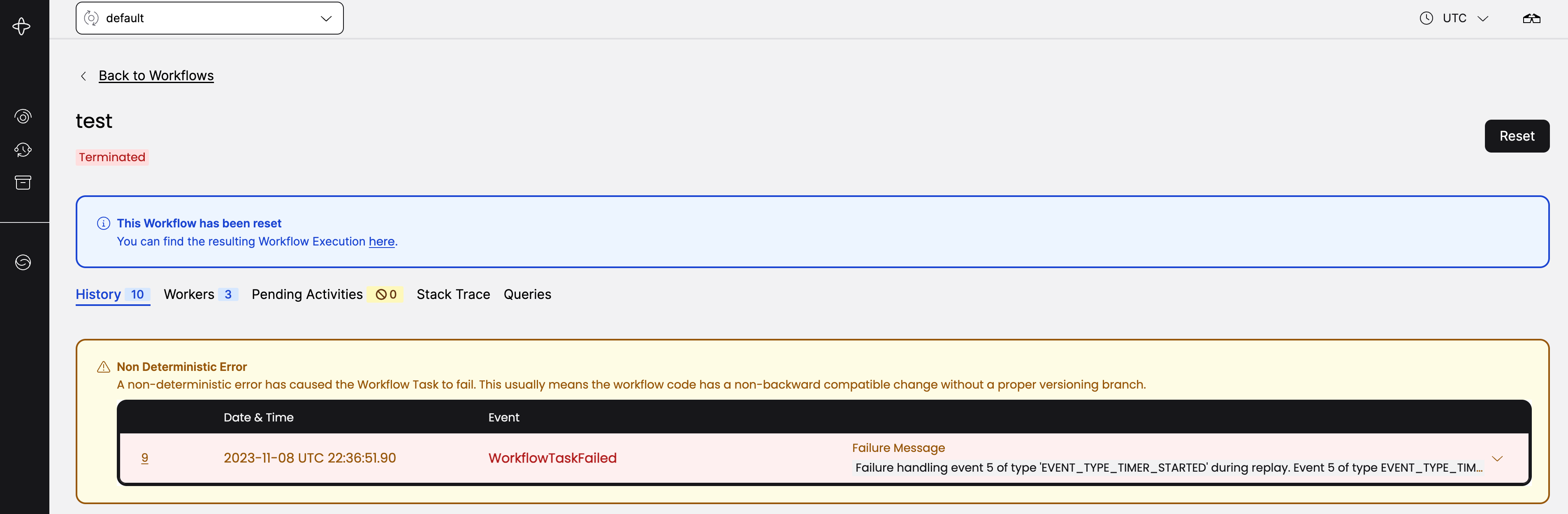
Once you've reset the Workflow, you'll notice that the Workflow terminated and the Web UI provided a link to a new Workflow execution. The Event History up until the point you chose was copied over and executed.
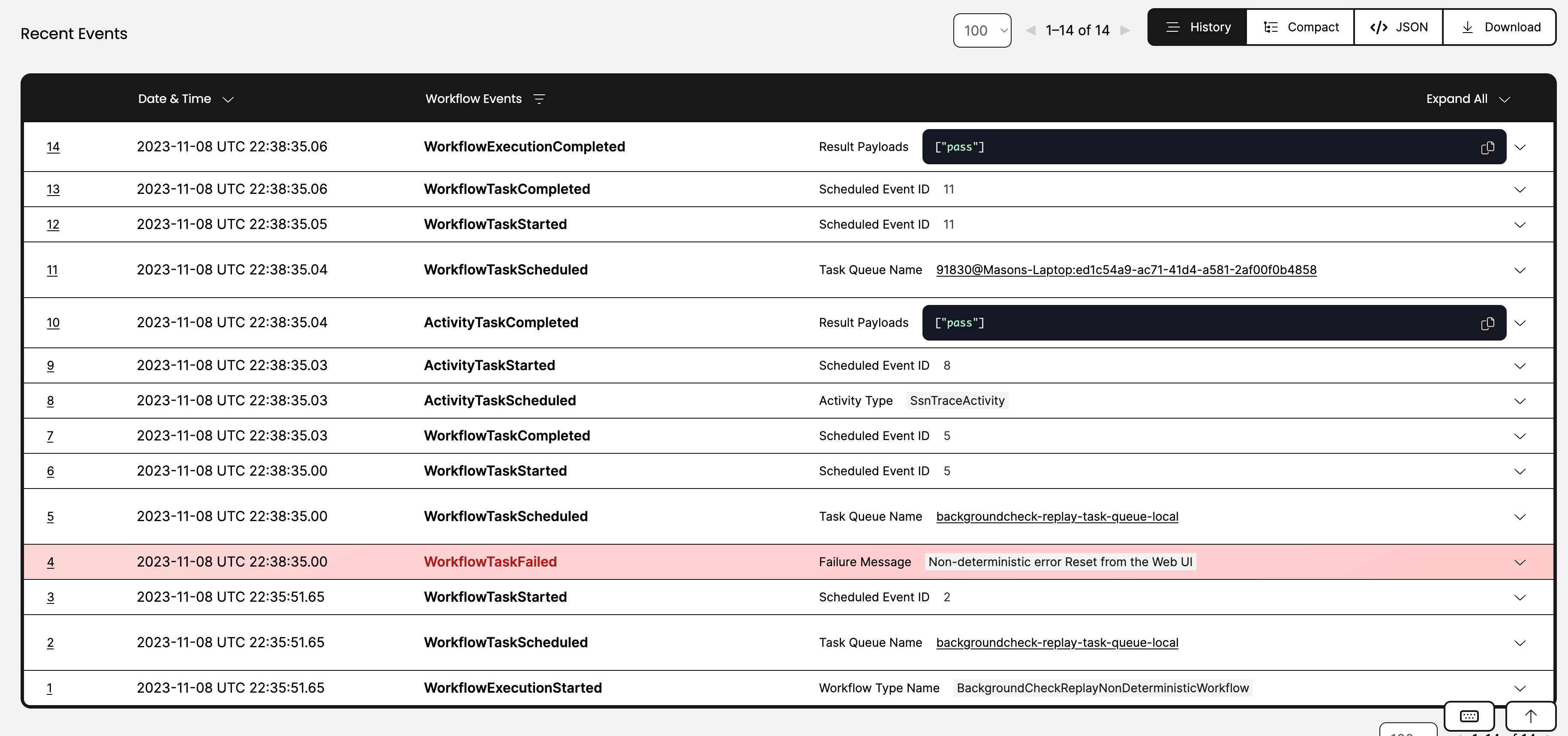
After the Timer has fired, the Workflow should execute to completion without any more errors. The new Event History includes the WorkflowTaskFailed event that was used as the reset point, along with the reason you reset the Workflow.
Resetting via the Temporal CLI
The following temporal command is the equivalent of doing it in the Web UI:
$ temporal workflow reset \
	--workflow-id my-workflow-id \
	--event-id 4 \
	--reason "Non-deterministic Error"
If you run the BackgroundCheckReplayNonDeterministicWorkflow Workflow enough times, eventually you will see a Workflow Task failure. The Worker logs will show something similar:
13:47:20.429 WARN  - Workflow task processing failure. startedEventId=8, WorkflowId=test, RunId=20ec9811-89c5-454e-b9ed-c284f19565e4. If seen continuously the workflow might be stuck.
io.temporal.worker.NonDeterministicException: Failure handling event 5 of type 'EVENT_TYPE_TIMER_STARTED' during replay. Event 5 of type EVENT_TYPE_TIMER_STARTED does not match command type COMMAND_TYPE_SCHEDULE_ACTIVITY_TASK. {WorkflowTaskStartedEventId=8, CurrentStartedEventId=3}
        at io.temporal.internal.statemachines.WorkflowStateMachines.handleCommandEvent(WorkflowStateMachines.java:442)
        ...
You will see information about the failure in the Web UI as well.

To inspect the Workflow Task failure using the Temporal CLI, use the long value for the --fields option:
temporal workflow show \
 --workflow-id backgroundcheck_workflow_break \
 --namespace backgroundcheck_namespace \
 --fields long
What's next?
Build an email drip campaign
Implement an email drip campaign with Temporal's Workflows, Activities, and Queries, driven by a Spring Boot web action.
Start the tutorial Java tutorialCreate audiobooks with OpenAI
Build audiobooks from text using OpenAI APIs and Temporal error mitigation.
Start the tutorial Self-pacedTemporal courses
Continue your Temporal journey with free, self-paced courses covering 101, 102, and advanced topics.
Browse coursesGet notified when we launch new educational content
New courses, tutorials, and learning resources - straight to your inbox.